Configure FileVault settings on managed devices
To set a FileVault configuration for a macOS device:
- Select the Devices tab in top navigation.
- Select one or more devices.
- In the right panel, select Security.
- Choose an existing passcode rule, then click Set FileVault Configuration.
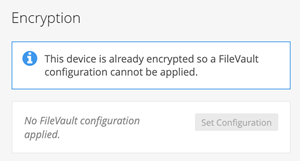
If KACE Cloud thinks one or more of the selected devices is encrypted, you will be prevented from setting a FileVault configuration. If this is incorrect, run an inventory on the devices and the encryption status will be updated. The current encryption status of a macOS device can be seen under the Security section of the Device's General panel.
Clear FileVault configuration
The Clear FileVault Configuration command will remove the KACE Cloud FileVault configuration profile from the device.
- Select the Devices tab in top navigation.
- Select a device from the list.
- In the right panel, select Security.
- Choose Clear Configuration.
- Click Confirm.
Removing the profile will not automatically disable FileVault and decrypt the device. FileVault will need to be disabled manually before the device is decrypted.
View and decrypt personal recovery key
The personal recovery key can be used by device users to log into their device. If a user has forgotten their password, KACE Cloud can display the device's personal recovery key granting them access.
You can only view the personal recovery key if you have chosen to report the key during the inventory.
- Select the Devices tab in top navigation.
- Select a device from the list.
- Device must have been instructed to report the recovery key during inventory.
- In the right panel, select General.
- Scroll down to Security.
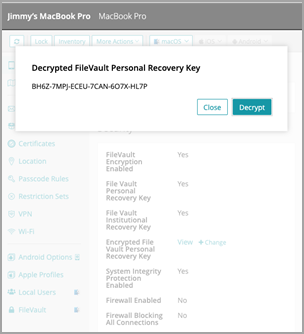
- Next to Encrypted File Vault Personal Recovery Key, click View.
- This will show the encrypted key as reported during inventory.
- The Decrypt button will only be available if the associated FileVault configuration has the decryption certificate.
- Click Decrypt, if available.
Change personal recovery key
If a user has had to use their personal recovery key to gain access to their device, the recovery key can be changed through KACE Cloud.
This process requires the password of a FileVault enabled user unless the device is using a CoreStorage volume in which case the password will be the old recovery key.
- Select the Devices tab in top navigation.
- Select a device from the list that has been instructed to report the recovery key during inventory.
- In the right panel, select General.
- Scroll down to the Security section.
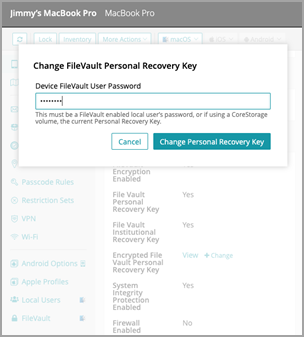
- Next to Encrypted File Vault Personal Recovery Key, click Change.
- Enter the password or old recovery key, then click Change Personal Recovery Key.
- If the command succeeds, the device will immediately respond with the new recovery key. This can be viewed and decrypted as mentioned above.
Lock or Reset a FileVault Enabled macOS Device
An encrypted macOS device can still be locked and wiped remotely provided a user has unlocked FileVault and the device is up and running. If the device is waiting to be unlocked, no MDM command will be able to reach it.
Device view
This shows the results of applying a FileVault configuration to a device.
First login
The user will see a similar screen after logging in for the first time once a FileVault configuration has been applied to the device.
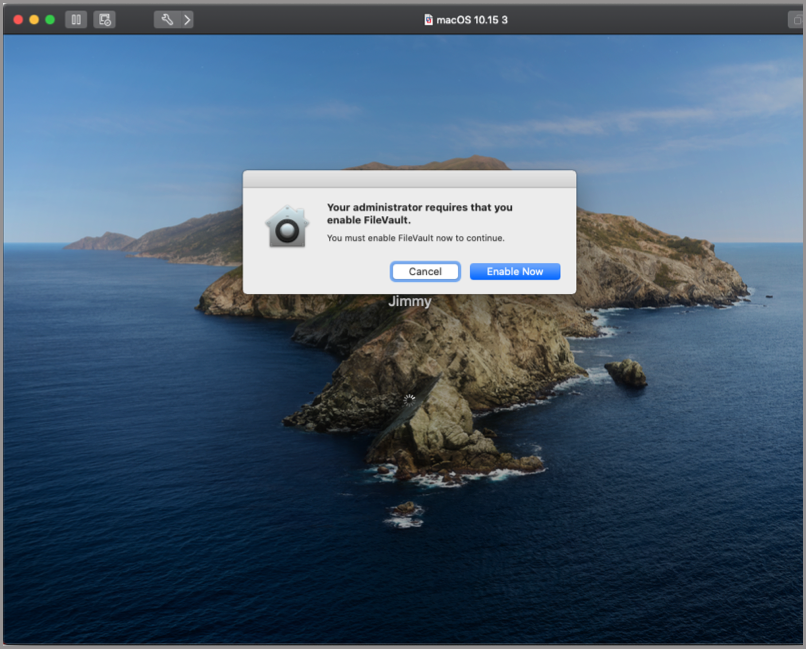
If the configuration allows the user to bypass FileVault enablement, the user can click cancel and continue logging in. If the configuration does not allow the device user to bypass, clicking cancel will send them back to the login screen.
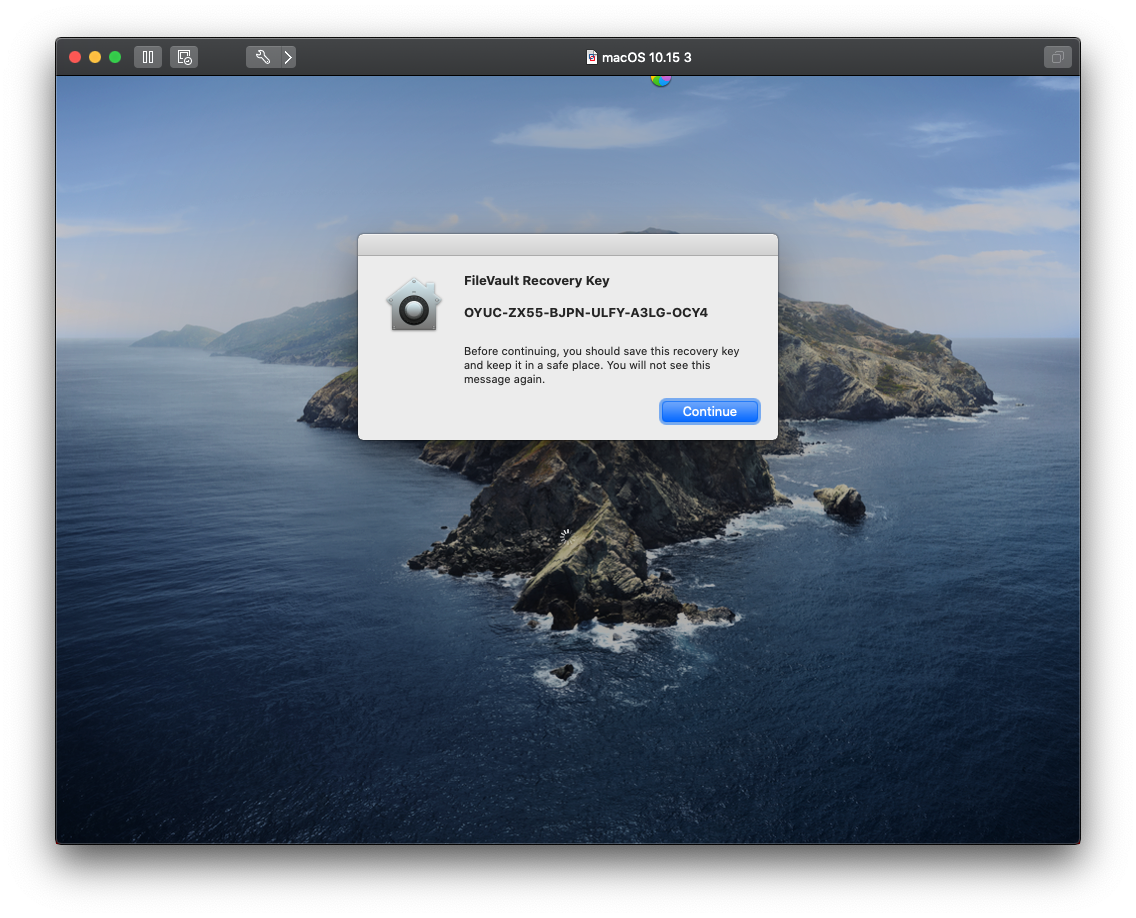
Showing the personal recovery key
If the configuration is set up to show the device user their personal recovery key, they will see a similar screen.
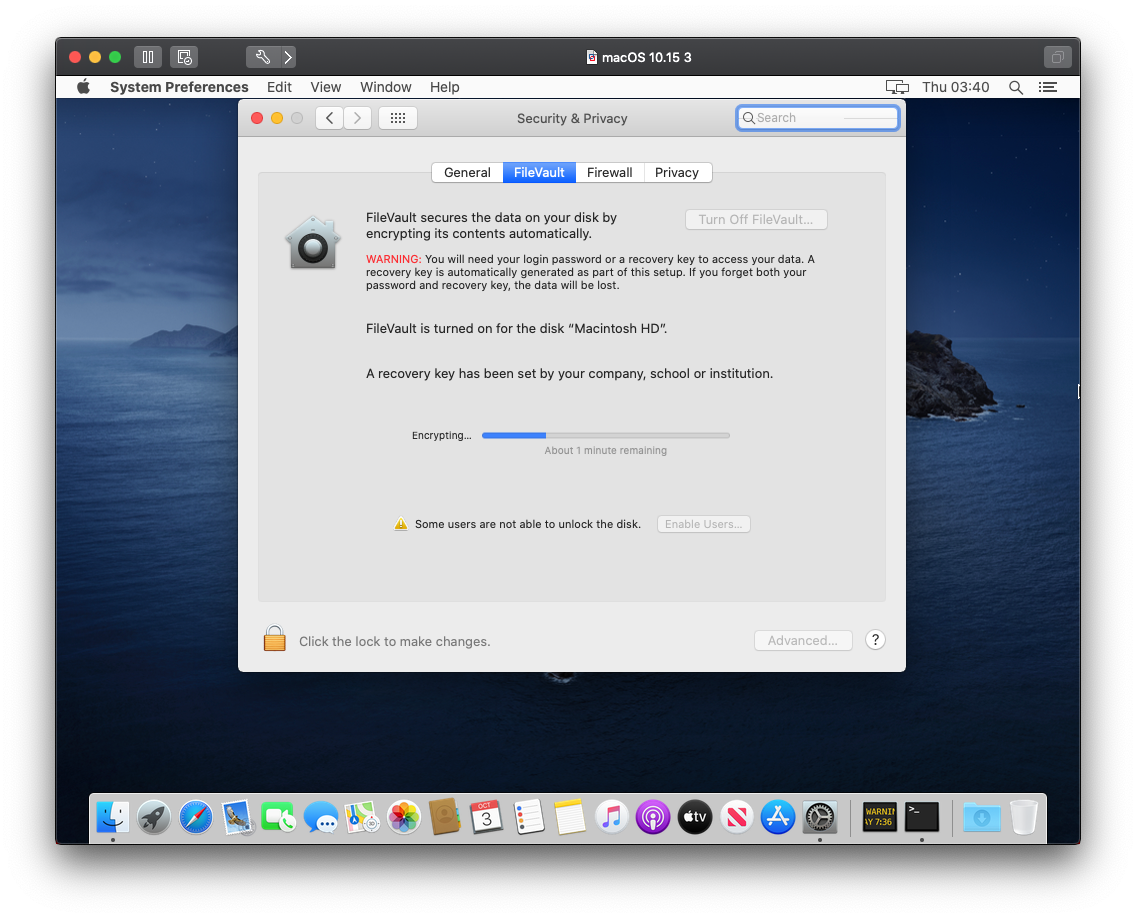
Once the user logs in, they can see the encryption progress via the FileVault section on the Security and Privacy system preference panel.
Verifying 'Require Unlock After Hibernation'
Verifying the success of the 'Require Unlock After Hibernation' setting can be difficult. The setting is not displayed in Profiles like most other MDM configurations. However, there is a command to view the status of this field.
Run the following command in terminal: pmset -g, which will print an output similar to the following screen:
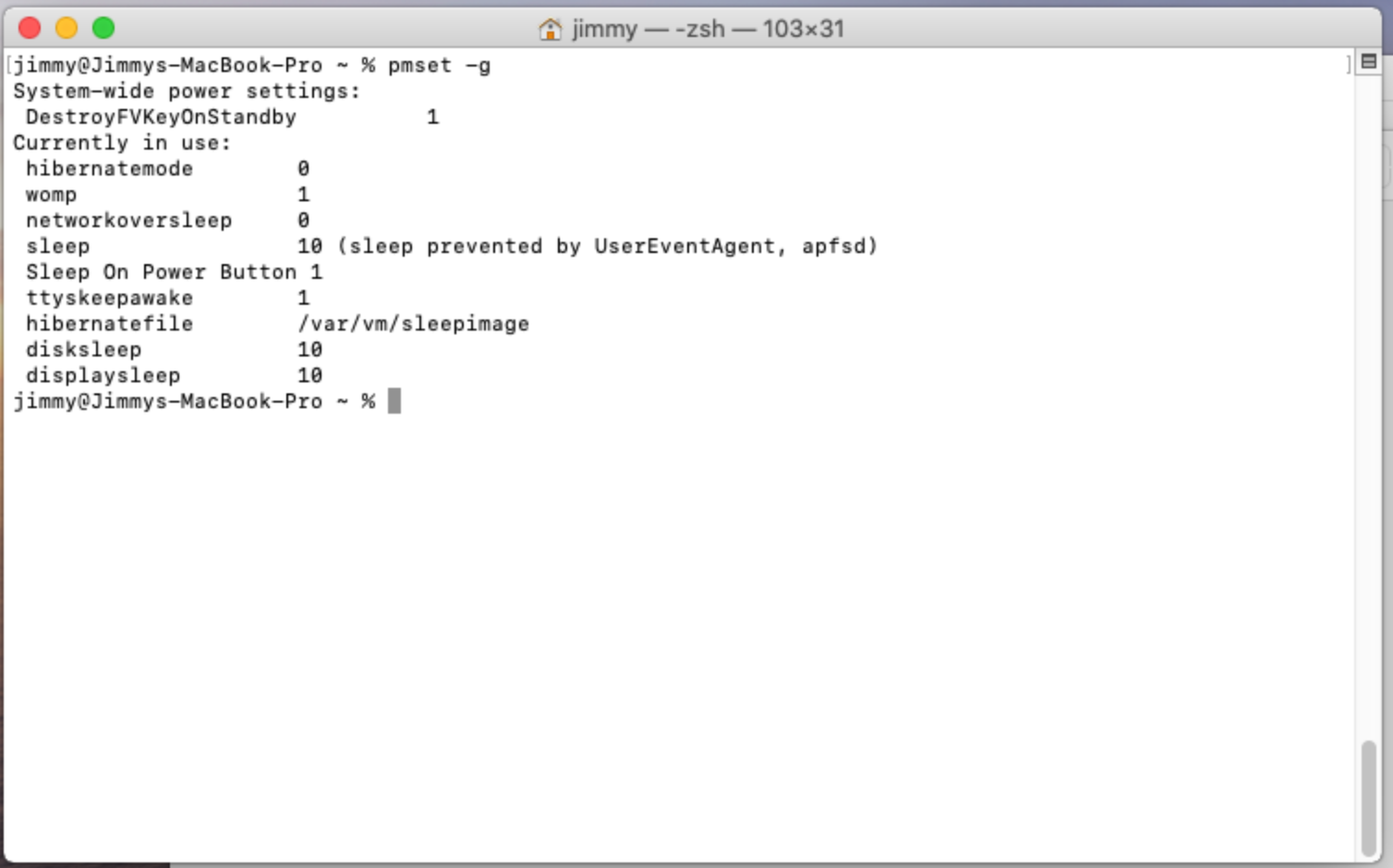
Notice that 'DestroyFVKeyOnStandy' is set to 1. This means 'Require Unlock After Hibernation' has been enabled for this device. The default is 0. If the device in the screenshot was in hibernation, a FileVault password would be required when the device is woken up.
Booting device recovery mode
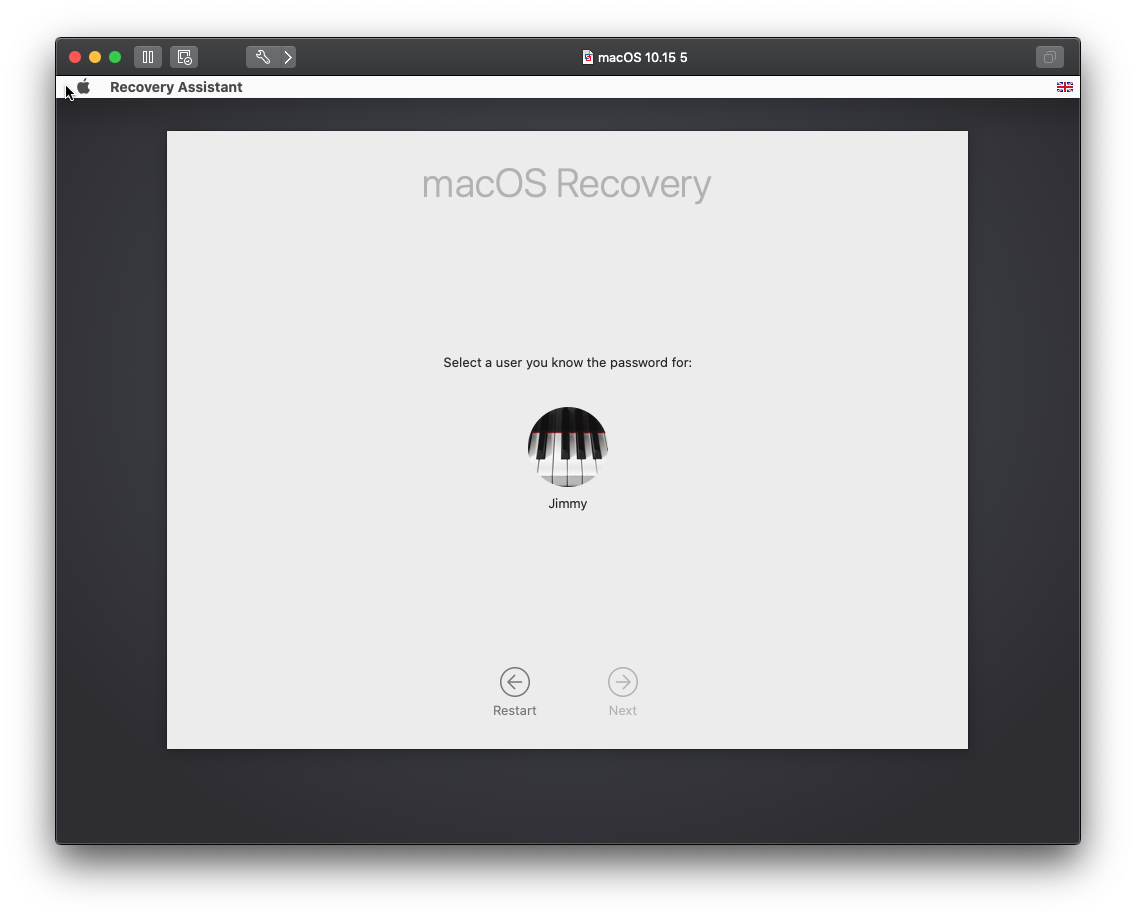
Booting to a device’s recovery partition is slightly different when FileVault is enabled in macOS 10.15. You are first asked for a FileVault user’s password.
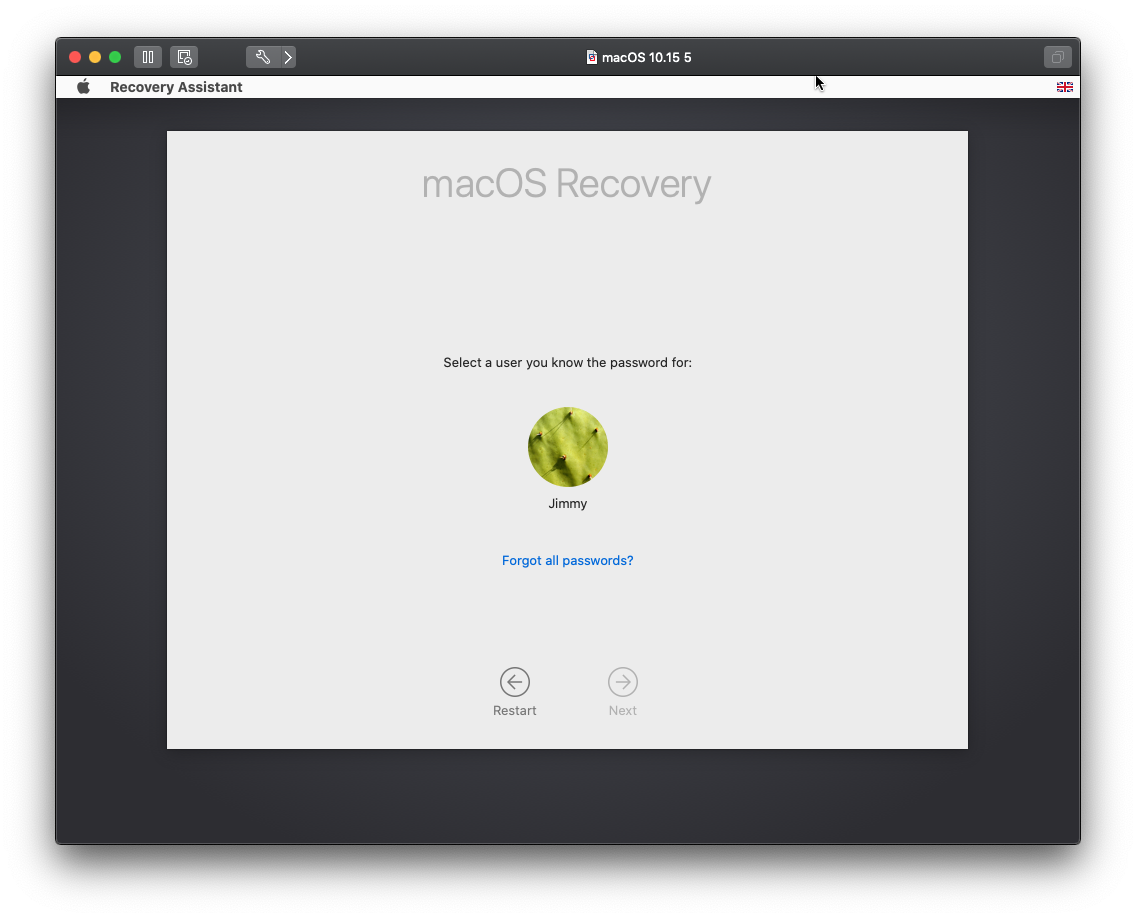
If no passwords are known, but a personal recovery key has been set up, then that key can be entered to unlock recovery mode.
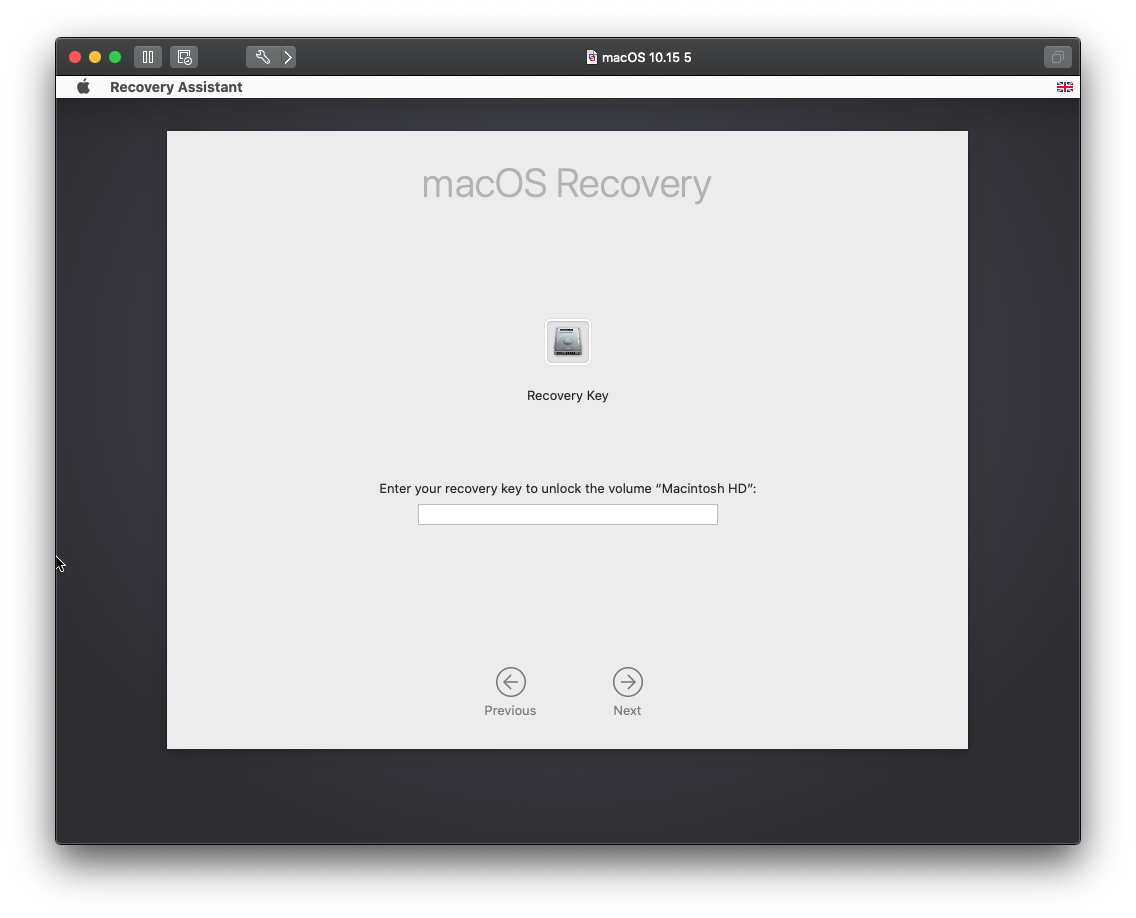
If no personal recovery key exists, you will have to know a FileVault user's password to continue.
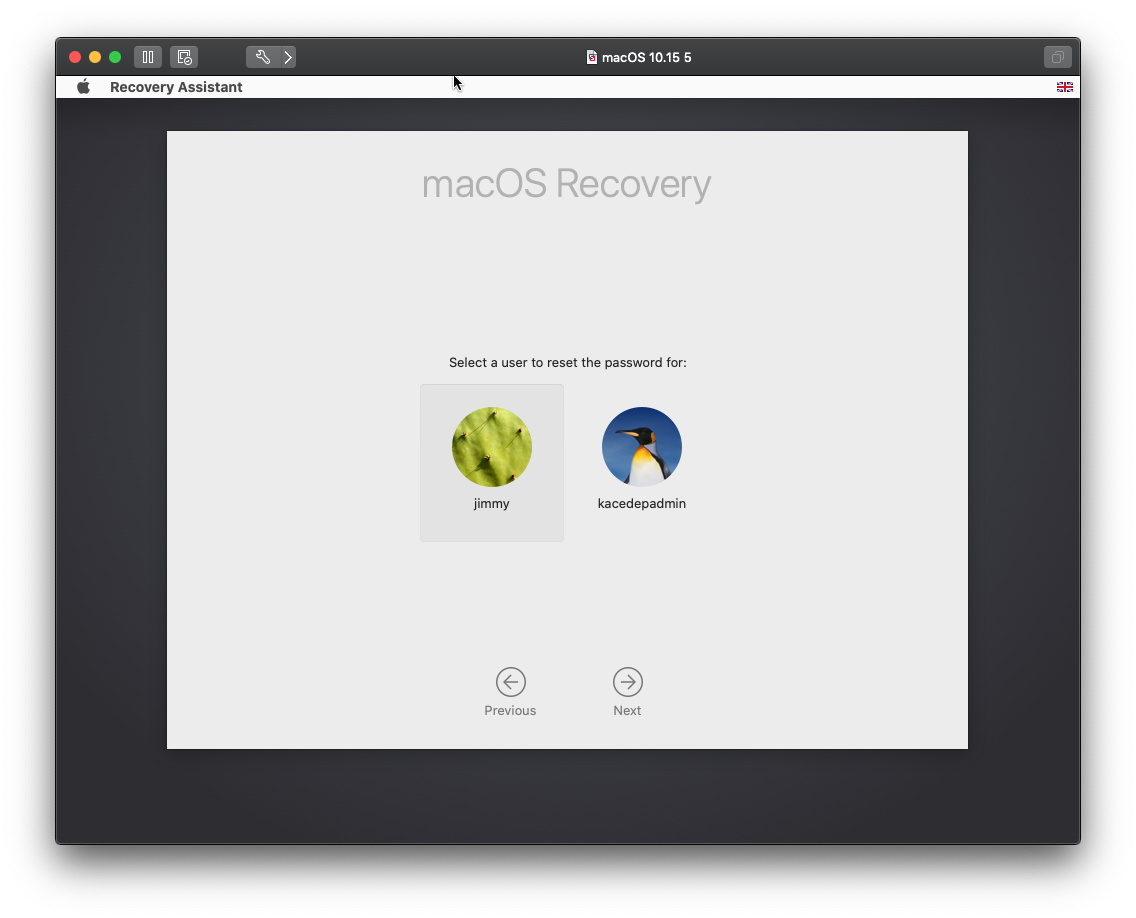
Upon entering a correct personal key, you can change the password for any user.
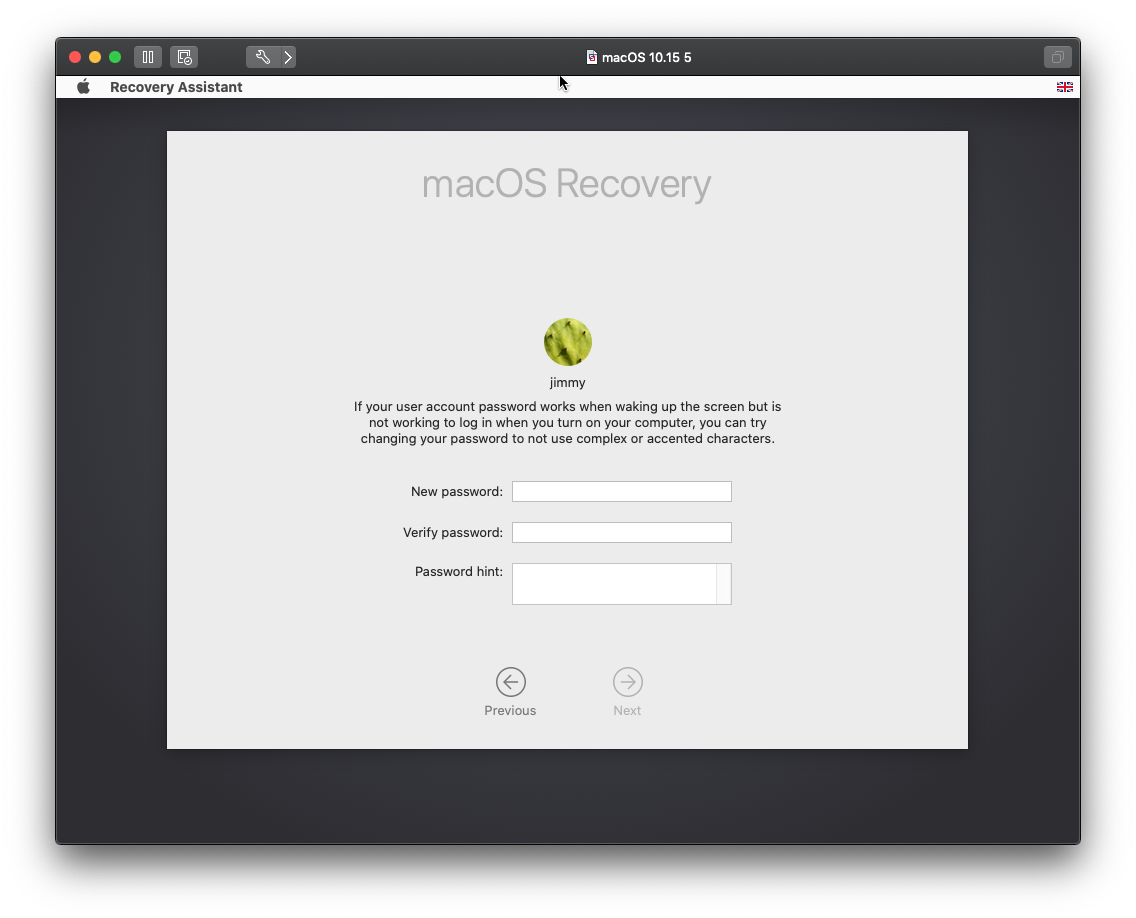
The change password screen.
If no personal recovery key or passwords are known, the disk can be erased. To erase the disk: Click Recovery Assistant, then Erase Mac.
You will not need the recovery key or a users password if you boot to an alternative source like a USB drive. However, this will require the firmware password if one is set for the device.
Encryption using bootstrap tokens
With the release of macOS 10.15 (Catalina), bootstrap tokens will be added to all DEP devices. The tokens allow admins to give domain users full access to a FileVault-encrypted macOS device.
See macOS Active Directory Configuration.
Known issues
There following are known issues with using FileVault and MDM:
- Changing the recovery keys through KACE Cloud requires the password of FileVault user.
- There is no work around for APFS systems which has been mandatory since macOS 10.14.
- The institutional recovery key can be changed using master key chain for HFS systems which is only supported on macOS 10.3.
- The device user can enable FileVault before initial log out even if a FileVault profile has been installed.
- The work around is to prevent FileVault access through a restriction profile.
- The device user can change their personal recovery key through terminal if they have admin permissions. This means the personal recovery key stored in KACE Cloud could be out of date.
- If institutional recovery keys are used alongside personal recovery keys then no data is lost.
- Another workaround is to prevent users from having administrator permissions.
- If a DEP admin account has been created during setup and is added to FileVault, changing the DEP admin account password through MDM does not update the FileVault record. So the old password unlocks the disk but the new one is required to log in.
- Workaround is to enable Remote Desktop and change the DEP admin account password manually.
- Removing the FileVault profile does not disable FileVault.
- FileVault has to be disabled manually.
- A FileVault configuration profile cannot be installed on a device with FileVault enabled.